



The Port That Looks the Same but Isn’t
USB-C has become the dominant connector across laptops, phones, tablets, and monitors – but the oval port on the side of your device is not a guarantee of any specific capability. Two machines can carry identical-looking USB-C ports and offer entirely different feature sets. One might push 4K video to an external display while the other can barely charge a phone.
Video output is one of the most commonly misunderstood USB-C features, mostly because nothing about the port’s physical appearance signals whether it supports display signals at all. Before you buy a cable, a dock, or a USB-C monitor, knowing exactly what your port can do will save you from a frustrating dead end.
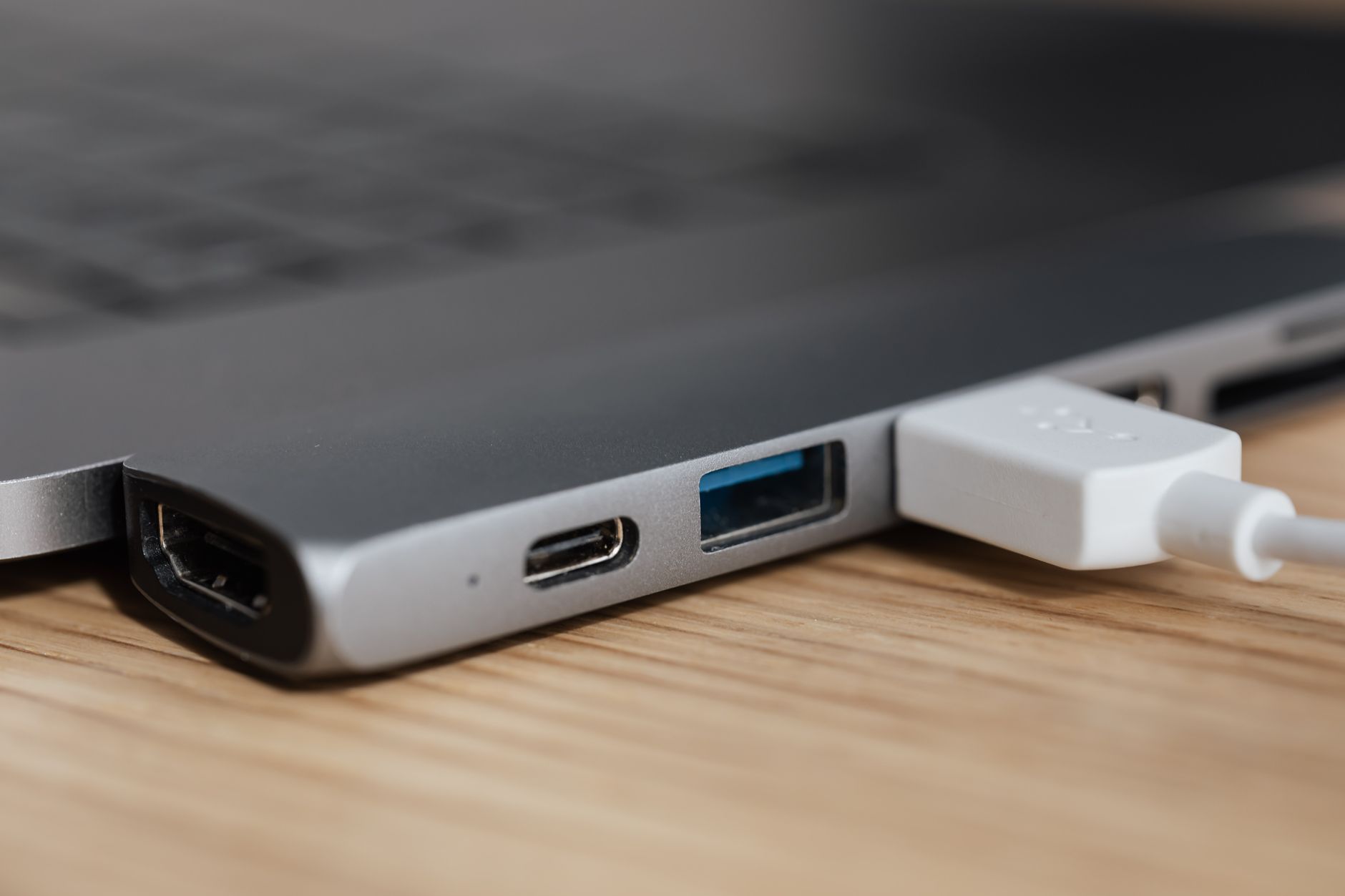
Why USB-C Is Not One Thing
The USB-C connector is a physical standard – it defines the shape of the plug and socket, not what travels through it. The actual capabilities depend on which underlying protocols the port’s controller supports. USB-C ports can carry data, power, audio, and video, but manufacturers decide which of those functions to include, and budget devices often skip video entirely to cut costs.
Video over USB-C typically works through two different pathways. The first is DisplayPort Alternate Mode (often called DisplayPort Alt Mode), which routes a DisplayPort signal directly through the USB-C connector. The second is Thunderbolt, Intel’s high-bandwidth interface that bundles DisplayPort signals alongside PCIe data lanes. Both can drive external monitors, but they require hardware support baked into the device at the manufacturing stage – there is no software update that adds video output to a port that was never built for it.
A third pathway, USB4, carries DisplayPort tunneling in its specification and is increasingly common in newer devices. USB4 Version 2.0, found in some 2023 and 2024 hardware, can handle DisplayPort 2.1 signals, which support resolutions above 4K at high refresh rates. The underlying point is the same: the spec supported by your specific port is what matters, and that varies by device, by year, and sometimes by which port on the same machine you are using.
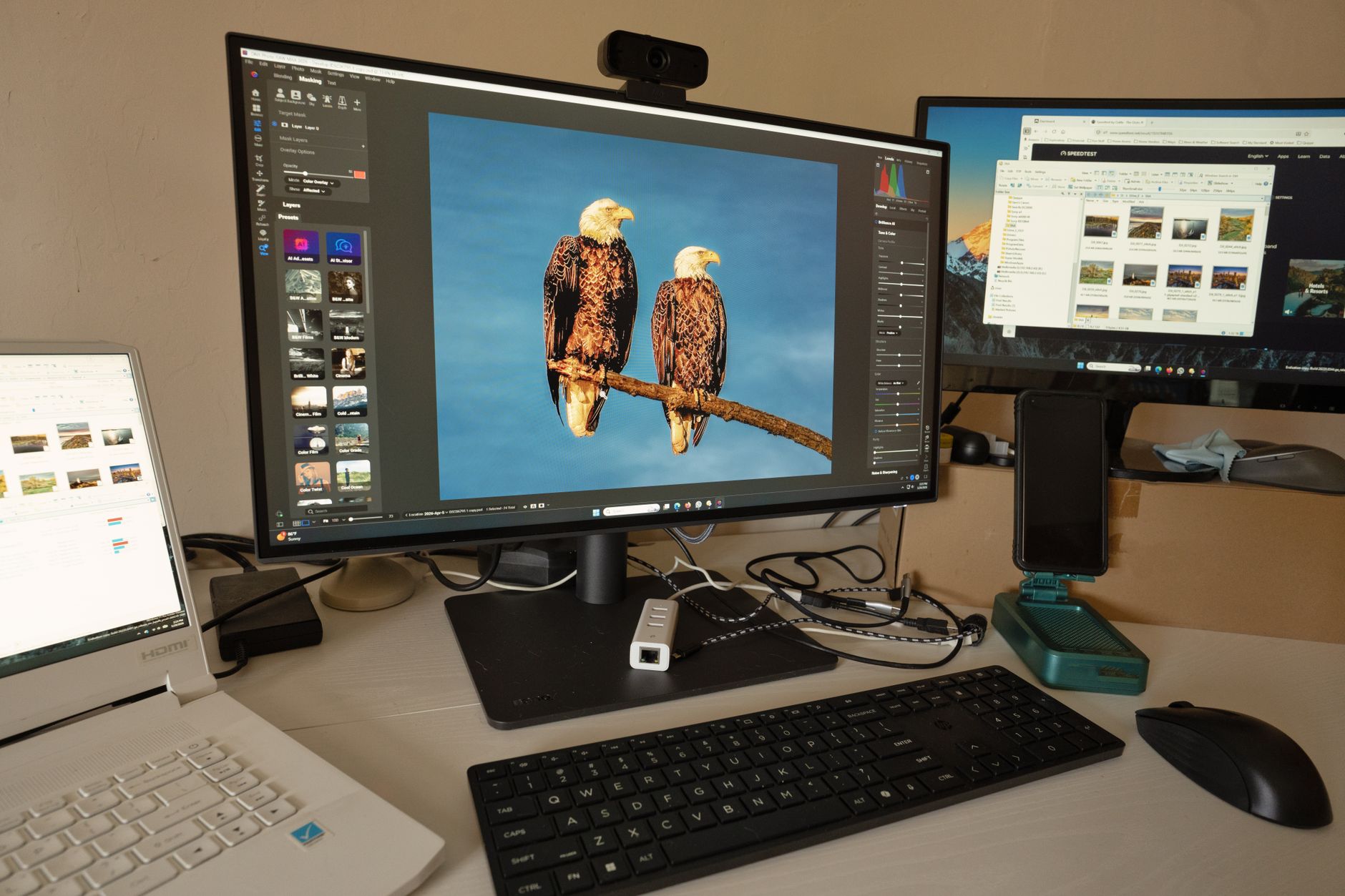
How to Check Your Port Before Buying Anything
The fastest starting point is your device’s documentation. Manufacturers list port capabilities in spec sheets, either on the product page or in the user manual. Look for terms like “DisplayPort Alt Mode,” “Thunderbolt 3,” “Thunderbolt 4,” or “USB4” next to the USB-C port description. If the spec sheet says only “USB 3.2” or “USB 2.0” with no additional protocols listed, video output is almost certainly not supported on that port.
Physical markings on the device itself sometimes help. A small lightning bolt symbol next to a USB-C port indicates Thunderbolt. A DisplayPort logo – the D-shaped icon – next to a port means DisplayPort Alt Mode is supported. Many budget laptops and most Android phones carry no such markings and no video support, which is why checking specs first is worth the two minutes it takes.
Operating systems can surface this information too. On Windows, opening Device Manager and expanding the “Universal Serial Bus controllers” section will show Thunderbolt controllers if they exist. On macOS, navigating to Apple menu > About This Mac > More Info and then checking System Information under the Thunderbolt/USB category lists each port’s capabilities in detail, including whether video output is available. Some ports on Apple Silicon Macs support video while others do not, even when they look identical on the outside – the M-series MacBook Pro line is a common example where the MagSafe side ports and the USB-C ports have different maximum capabilities depending on the chip configuration.
For phones and tablets, the situation is more fragmented. High-end Android flagships from Samsung, Google, and OnePlus have added DisplayPort Alt Mode support over the past few years, but mid-range and budget Android devices almost never include it. Apple’s iPad Pro and iPad Air with M-series chips support video output over USB-C; older iPads with Lightning connectors need an adapter, and even among USB-C iPads, older models have more restricted output capabilities. iPhones moved to USB-C with the iPhone 15 line, but only the iPhone 15 Pro and Pro Max support video output – the standard iPhone 15 and 15 Plus use USB-C for charging and data only.
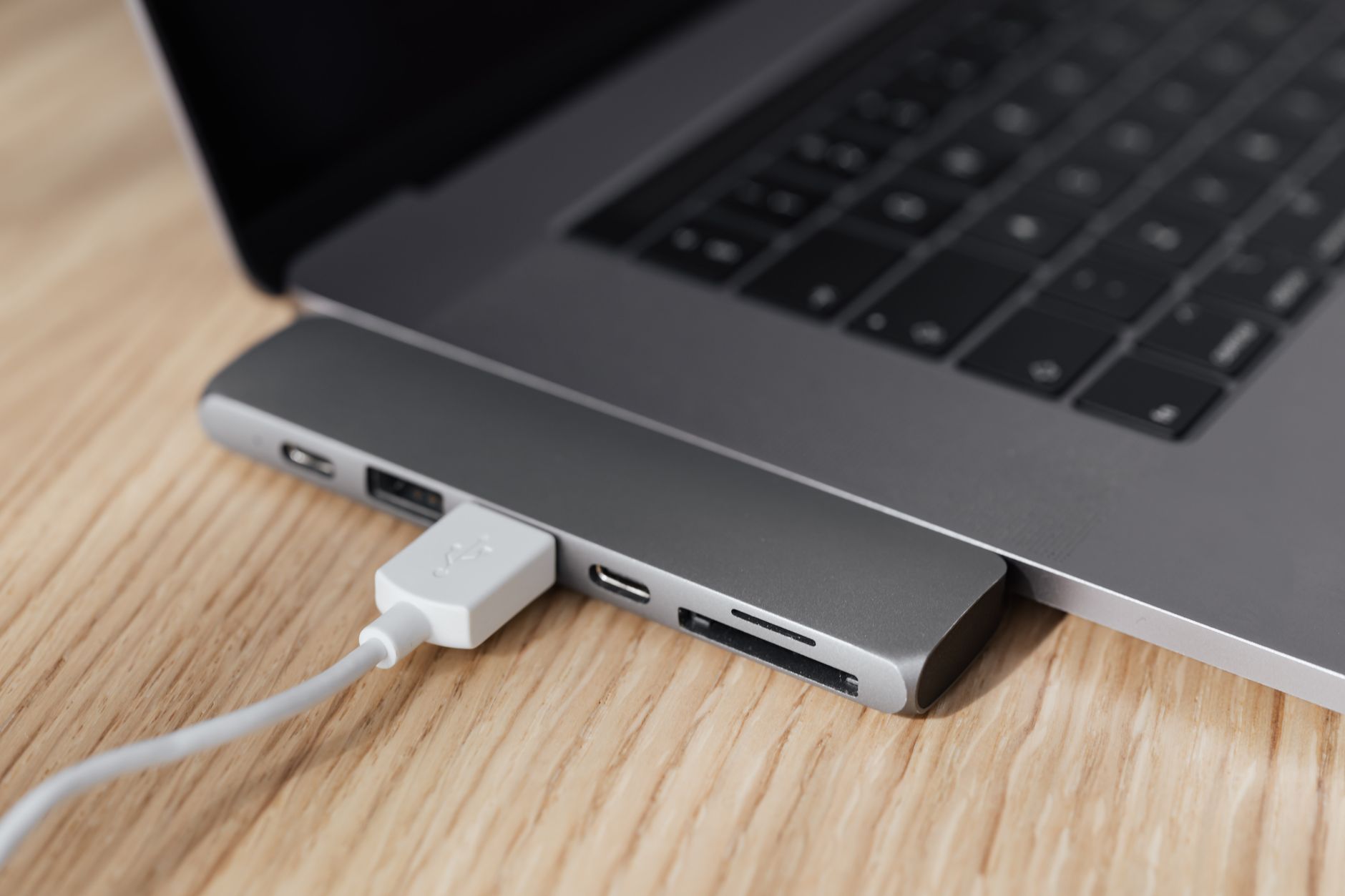
Cables and Adapters Matter Too
Even if your port fully supports video output, the cable or adapter in the chain can block the signal. A USB-C cable rated only for USB 2.0 speeds – common in cheap charging cables – will not carry DisplayPort or Thunderbolt video. You need a cable explicitly rated for the protocol you are using. Thunderbolt cables are labeled as such. DisplayPort Alt Mode generally requires a cable rated for USB 3.1 Gen 2 or higher, or a cable specifically described as supporting video or DisplayPort Alt Mode.
Adapters introduce another variable. A USB-C to HDMI adapter that works with one laptop may do nothing on another, because the adapter relies on the port supporting DisplayPort Alt Mode in the first place. The adapter itself is not generating a video signal – it is converting the DisplayPort signal already coming out of the port. If the port does not output DisplayPort, the adapter has nothing to convert. This is the single most common reason people find that a USB-C adapter “doesn’t work” when connected to certain devices.
Active adapters with their own chipsets exist for cases where a device supports video over USB but not over DisplayPort Alt Mode – some docks, for instance, use DisplayLink technology to compress and transmit video over standard USB data. These work, but they introduce compression artifacts at high resolutions and require driver software. They are a workaround, not a full replacement for native DisplayPort Alt Mode support.
If you are shopping for a new laptop or tablet specifically because you want to connect an external display, the clearest path is to confirm Thunderbolt 4 or USB4 support in the spec sheet before purchasing. Those standards include video output by definition. A device with only a generic USB-C port and no mention of Thunderbolt, USB4, or DisplayPort Alt Mode is a gamble – and one that a two-minute spec check before checkout will reliably prevent.