


The Feature Most Apple Music Subscribers Never Bother to Find
Apple Music subscribers pay for a library that follows them everywhere – from iPhone to Mac to iPad – but a surprising number of users never actually activate the setting that makes it work. The sync isn’t automatic in the way people assume. It lives behind a single toggle, buried just deep enough in settings that it gets overlooked during initial setup, and ignored long after.
Getting your collection to appear consistently across every Apple device you own requires turning on Sync Library, and once you do, your purchased tracks, playlists, and saved albums become available on any device signed into the same Apple ID.
One subscription. One toggle. Every device.
Where to Find the Setting and What It Actually Does
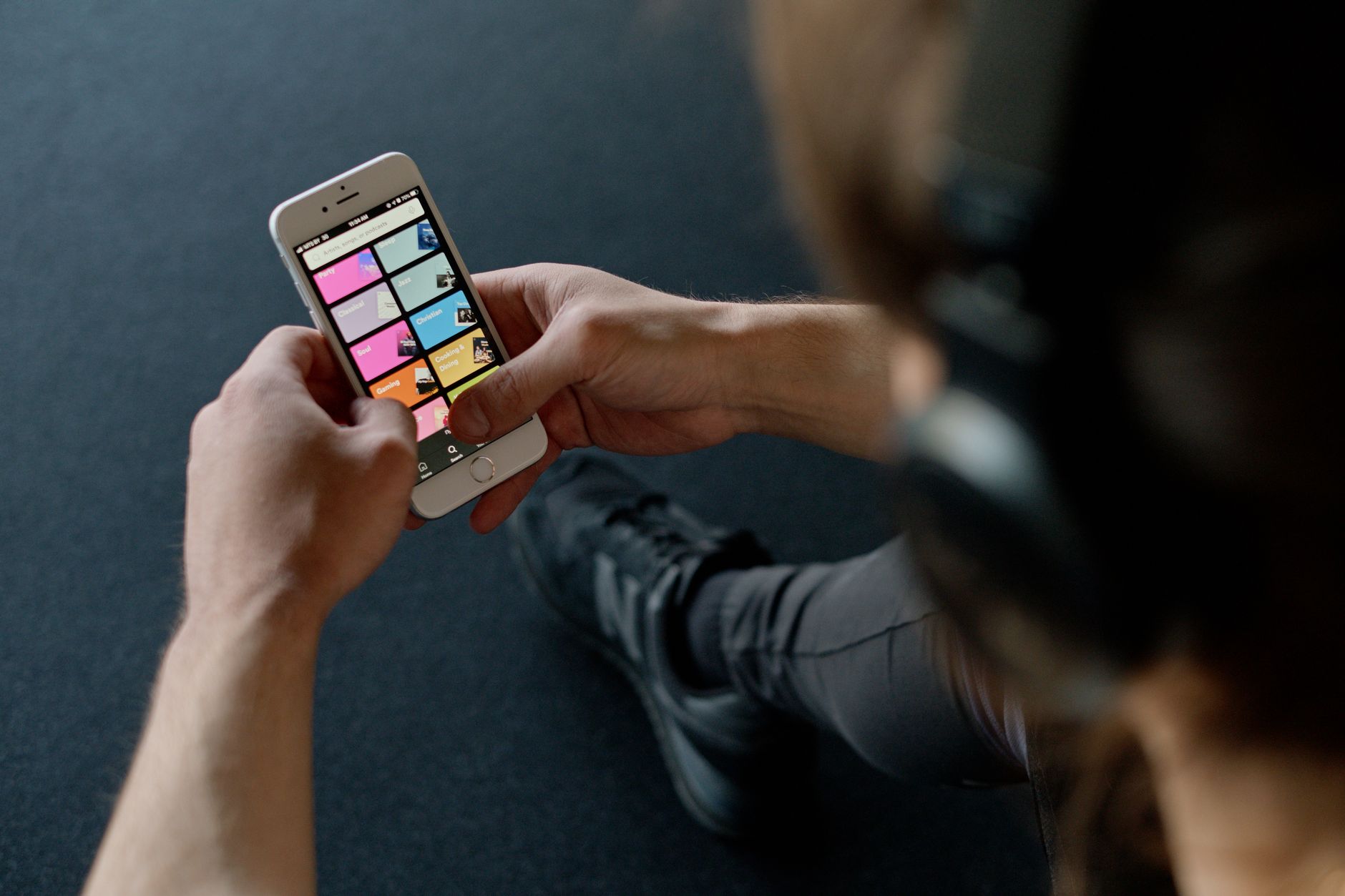
On iPhone and iPad, the path runs through the Settings app – not the Music app itself, which is where most people look first and give up. You tap your name at the top to enter your Apple ID settings, then navigate to Music, where the Sync Library switch appears near the top of the list. Flip it on, and Apple’s servers begin syncing your entire library across connected devices.
On a Mac, the process runs through the Music app directly. Open Music, go to Settings (or Preferences on older macOS versions), click the General tab, and check the box labeled Sync Library. The language shifts slightly between platforms – toggle versus checkbox, Settings app versus in-app menu – but the underlying function is identical. Apple is matching your library state to its cloud and pushing that state to your other devices.
What syncs isn’t just the music you’ve downloaded locally. It includes songs you’ve added to your library from Apple Music’s catalog, playlists you’ve built or followed, and albums you’ve saved. The practical result is that a playlist created on your Mac during a Monday morning session shows up on your iPhone before you leave the house – without any manual export, transfer, or file management involved.
What You Need Before It Works
The sync function requires an active Apple Music subscription. Without one, the toggle either doesn’t appear or does nothing – Apple Music’s library sync is a subscriber-only feature tied directly to iCloud Music Library infrastructure. If you’re on a family plan, each member’s library syncs independently under their own Apple ID, so there’s no cross-contamination of playlists between accounts.
All devices involved need to be signed into the same Apple ID. This sounds obvious, but it’s the most common reason sync fails silently – a secondary iPad signed into an older account, or a Mac that never got updated credentials after a password change. Checking that your Apple ID is consistent across devices takes thirty seconds and eliminates most troubleshooting scenarios before they start.
Storage and download preferences are managed separately from sync. Turning on Sync Library doesn’t automatically download everything to every device. It makes your library accessible across devices, meaning tracks stream on demand unless you’ve also enabled automatic downloads or manually downloaded specific albums for offline listening. For users on limited storage devices, that distinction matters – your full library appears, but only what you’ve chosen to download actually lives on the device.
For anyone already deep into Apple’s hardware ecosystem, the Apple Watch Ultra 4’s Action Button can also be mapped to music controls, making playback management faster once your library is properly synced.

When Sync Lags or Doesn’t Reflect Changes Immediately
Library updates don’t always propagate instantly. After enabling Sync Library for the first time, there’s a processing period – particularly if you have a large existing library – during which Apple’s servers index your collection. This can take anywhere from a few minutes to several hours depending on library size and connection speed. The Music app on each device shows a sync status indicator near the bottom of the library view while this is in progress.
Toggling the feature off and back on can sometimes shake loose a sync that appears stuck. Signing out of your Apple ID on the affected device and signing back in is the next step if that doesn’t resolve it. These aren’t elegant solutions, but they address the most common failure modes without requiring a support call or settings reset.
What nobody tells you upfront: if you’ve previously matched or uploaded tracks through iTunes Match – Apple’s older service for adding non-Apple Music files to the cloud – those tracks are also included in the synced library. Songs ripped from CDs, files purchased elsewhere, obscure live recordings sitting in a folder on your Mac – all of it becomes part of the same synced collection once Sync Library is active and iTunes Match or Apple Music has processed the files.
The toggle is small. The implications for how you actually use a multi-device Apple setup are not.