


That Old Laptop Collecting Dust Has Options
Most people treat a slow Windows laptop like a dead appliance – unplug it, shove it in a closet, eventually drop it at an e-waste bin. But a free operating system from Google called ChromeOS Flex changes that math considerably, turning machines that struggle to run Windows 10 or 11 into functional daily computers without spending a dollar.
ChromeOS Flex is Google’s answer to hardware obsolescence – a stripped-down, browser-centric operating system designed to run on older PCs and Macs that can no longer keep pace with modern software demands.
The install process requires a USB drive, about 20 minutes, and a willingness to wipe your existing system – none of which should stop anyone comfortable enough to have kept an old Windows machine around in the first place.

What ChromeOS Flex Actually Is
ChromeOS Flex is not the same operating system that ships on Chromebooks you buy at Best Buy, though it’s very close. Google built it specifically for repurposing existing hardware rather than powering new devices. The interface is identical to ChromeOS, you get the same Chrome browser experience, and Google Drive integration works exactly as it does on a purpose-built Chromebook. What you don’t get is access to the Google Play Store on most installations, which means Android apps are largely off the table depending on your hardware.
That limitation matters less than it sounds. The operating system is built around the web, and in 2025, the web handles most of what people actually do on laptops – email, video calls, document editing, streaming, light photo work, social media. If your use case fits inside a browser tab, ChromeOS Flex covers it without complaint. Google Docs, Gmail, YouTube, Zoom, and Microsoft 365’s web apps all run without issue.
Performance is where ChromeOS Flex earns its reputation. Because the operating system discards most of the overhead that makes Windows feel sluggish on older hardware – background processes, system telemetry, driver layers, security scanning – the same machine that crawled through Windows boot sequences can open in under 20 seconds running ChromeOS Flex. A laptop with 4GB of RAM and a sixth-generation Intel processor, which would be nearly unusable running Windows 11, becomes a reasonably snappy machine. Boot times are fast, tab switching is responsive, and the system doesn’t degrade noticeably over weeks of use the way Windows installations often do.

Installing It: What the Process Actually Looks Like
Google provides a dedicated ChromeOS Flex installer through the Chrome browser – specifically via a Chrome extension called Chromebook Recovery Utility. You plug in a USB drive with at least 8GB of storage, run the extension, select ChromeOS Flex as your target, and let it download and write the image. The whole preparation stage takes roughly 20 minutes depending on your internet speed. From there, you boot your old laptop from the USB drive, run through a short setup wizard, and choose whether to install ChromeOS Flex permanently or try it live from the USB first.
The live mode option is worth using before committing. It lets you test whether your specific laptop’s Wi-Fi card, trackpad, display, and keyboard all behave correctly under ChromeOS Flex before you erase Windows. Google maintains a certified device list on its website covering hundreds of laptops confirmed to work well, but plenty of uncertified machines run it fine. The risk of trying live mode is essentially zero – nothing touches your existing system until you choose to install.
One important detail: installing ChromeOS Flex permanently wipes your drive. Everything on the Windows installation – files, programs, settings – gets erased. Backing up anything important to an external drive or cloud storage before starting is not optional. Google makes this warning clear during setup, but it’s the step people most often skip in their enthusiasm to get started, and there’s no recovery path once the process completes.
Who This Actually Makes Sense For
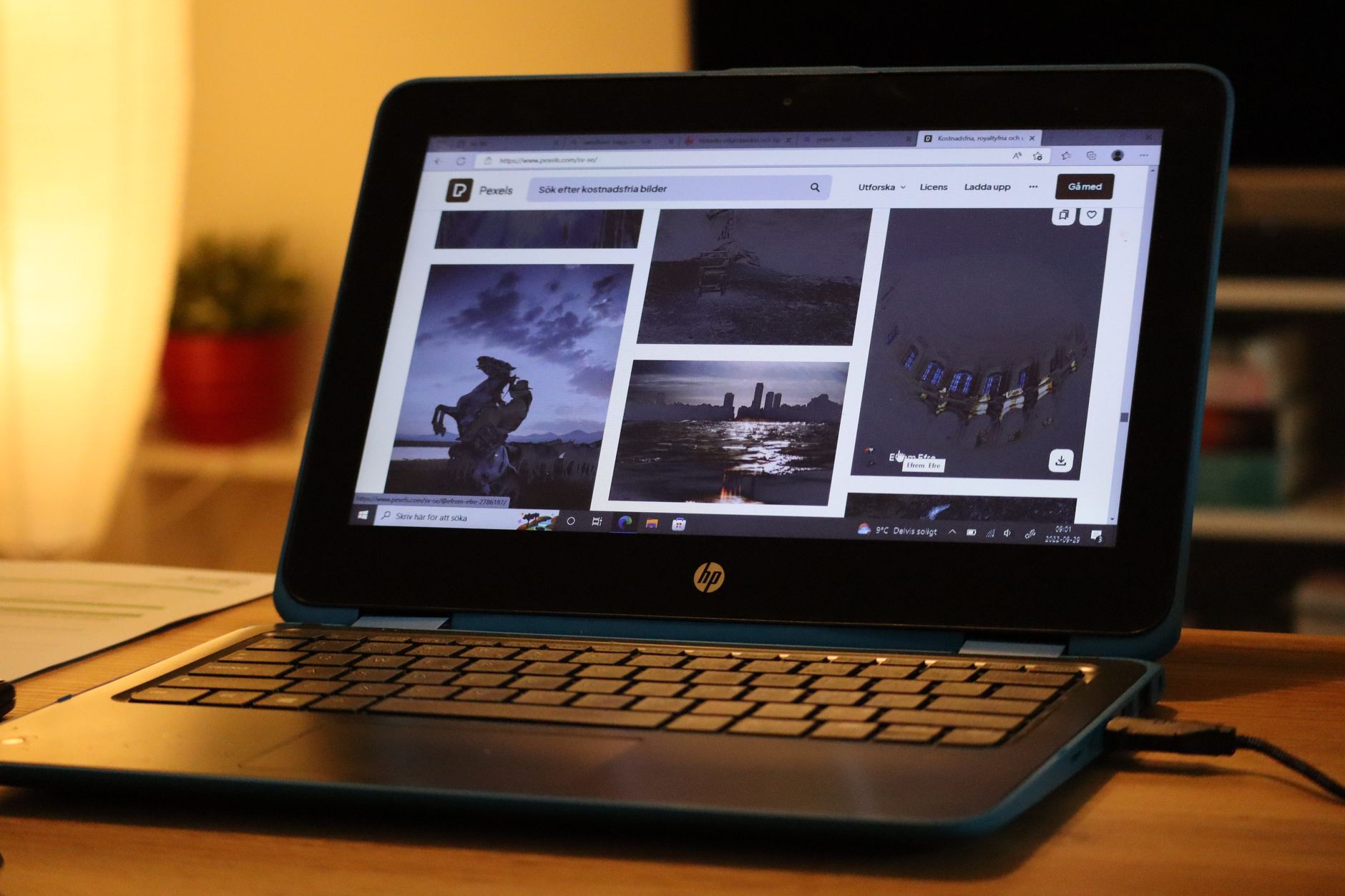
ChromeOS Flex is a strong fit for a specific kind of user and a specific kind of machine. If the laptop in question is a secondary device – something used for browsing, travel, or kids’ schoolwork – and it’s running slowly because Windows has accumulated too much weight for its aging hardware, ChromeOS Flex solves that problem directly. Students doing web-based coursework, remote workers who live in Google Workspace, and anyone who primarily streams content will find the experience genuinely usable, not just tolerable.
It’s a worse fit for anyone who depends on local Windows software. There’s no way to run Photoshop, QuickBooks, industry-specific desktop tools, or games through ChromeOS Flex. Web-based alternatives exist for some of these, but “the web version” of professional software often lacks features that matter. The operating system doesn’t pretend to replace Windows for power users – it carves out a narrower, cleaner lane and executes well inside it.
The environmental angle is straightforward: a laptop that stays in use doesn’t end up in a landfill. Manufacturing a new laptop carries a significant carbon footprint, and extending a machine’s life by three or four years through a free OS install has real material impact. That’s not an abstract benefit – it’s a concrete reason to try ChromeOS Flex before buying a replacement, especially when the installation costs nothing and takes less than an hour.
Google updates ChromeOS Flex on the same schedule as ChromeOS, which means security patches arrive automatically and the platform continues to evolve. The question worth sitting with: if a laptop can handle web browsing, video calls, and document work for another few years at no cost, what exactly is the argument for replacing it?