


The Gap Between “4K TV” and “4K Picture”
Owning a 4K television does not mean everything you watch on it is playing in Ultra HD. The hardware supports the resolution, but the content, the streaming service, the cable plan, and even the HDMI cable connecting your devices all determine whether those extra pixels are actually being used. Most people have no idea there is a difference until someone points it out – and even then, it can be hard to know where to look.
Not all content is produced or distributed in 4K.
That gap between what your TV is capable of and what it is actually displaying at any given moment is surprisingly common. A movie listed on a streaming platform may have a 4K version, but if your subscription tier does not include Ultra HD, you are watching a 1080p stream on a screen built for four times that pixel count. The TV will upscale the image – stretching the lower-resolution signal to fill the screen – which looks fine but is not the same thing. Knowing how to check the actual output resolution takes about thirty seconds and requires no special equipment.

How to Verify What Your TV Is Actually Displaying
Most modern smart TVs include a built-in display or picture information panel accessible through the settings menu. On Samsung TVs, pressing the Home button and navigating to Settings, then Support, then Device Care or About This TV will surface technical information about the current signal, including the incoming resolution. On LG sets running webOS, the quick settings panel often shows input resolution directly, and a deeper look is available under All Settings, then General, then About This TV. Sony Bravia models running Google TV allow you to check signal information by pressing the Quick Settings button and scrolling through display details.
Streaming apps handle this differently by platform. Netflix shows playback quality in real time if you open the app’s hidden diagnostic menu – on most smart TVs, pressing the remote’s up arrow four times and the down arrow once while a title is playing brings up a stats overlay that includes resolution, bitrate, and frame rate. Disney+ surfaces similar data through a long-press on the play/pause button on some platforms. The exact shortcut varies by device, but the playback information screen is almost always available somewhere in the app’s settings during active streaming.
External streaming devices like the Amazon Fire TV Stick 4K, Roku Ultra, or Apple TV 4K have their own resolution verification tools built into the device settings rather than the TV itself. On a Roku device, going to Settings, then Display Type will show you the output resolution the stick is sending to the TV. Apple TV 4K users can find this under Settings, then Video and Audio, where the current output format is displayed along with HDR status. If the Apple TV is set to “Auto” and your TV supports 4K HDR, it should negotiate the best available format automatically – but checking confirms it is actually doing so.
What Can Stop 4K From Getting Through
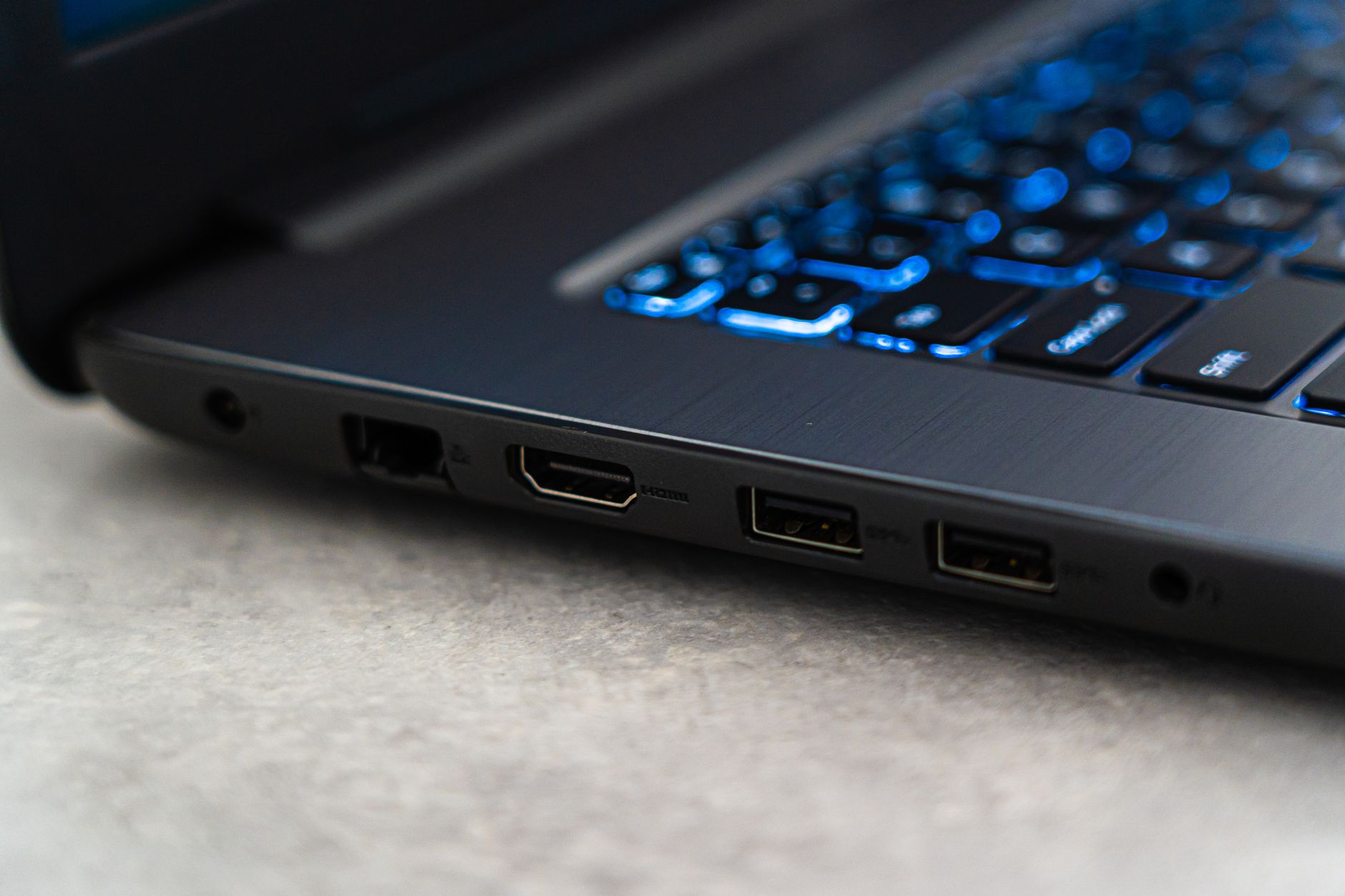
The HDMI cable is often the overlooked variable. Standard HDMI cables certified for 18 Gbps bandwidth handle 4K at 60 frames per second without issue, but older cables rated for 10.2 Gbps max out at 4K/30fps or may struggle with HDR metadata. If you are running a long cable from a wall-mounted source to a TV, or using a cable that came bundled with an older device, it is worth checking whether that cable carries a High Speed or Premium High Speed HDMI certification. The cable itself will not display any error – the picture just quietly drops to a lower resolution or produces signal artifacts.
Subscription tiers are the other common culprit. Netflix’s 4K Ultra HD content requires the Premium plan; the Standard plan tops out at 1080p. Disney+ includes 4K in its base subscription but still requires a compatible device and a minimum internet speed – generally 25 Mbps sustained – to maintain the full resolution stream. Amazon Prime Video flags its 4K titles with a “4K Ultra HD” label, but the actual stream quality depends on your connection and whether your device’s HDCP 2.2 copy protection handshake with the TV is completing successfully. A failed HDCP handshake typically results in a downgraded stream or an error message rather than a full resolution picture.
Internet speed matters more than most people factor in. Streaming 4K content typically requires a sustained connection of 15 to 25 Mbps depending on the service, with Netflix recommending 25 Mbps for Ultra HD. If your connection dips below that threshold – during peak evening hours, for example, or when multiple devices are active on the same network – the streaming app will automatically reduce resolution to maintain playback without buffering. The diagnostic overlay available in Netflix and other apps will show this resolution drop in real time, which is one of the most practical reasons to know how to access those hidden stats screens in the first place.
The most reliable confirmation that 4K is actually reaching your screen is the TV’s own signal information display – not the streaming service’s label, not the device’s marketing materials, but the raw input resolution the panel itself is reporting. If that number reads 3840×2160, the pixels are there. If it reads 1920×1080, something in the chain between the source and the screen is cutting the signal short, and knowing which content is actually available in 4K is a useful first step toward figuring out why.